
Template Variant Guardrails
Administrators can manage template variants and apply guardrails to control how campaigns are customized while maintaining brand consistency. Define clear boundaries for subject lines, preheaders, images, and content to guide users and ensure every campaign stays on-brand.
This feature is available for users with the Administrator role.
In this article
Manage Templates
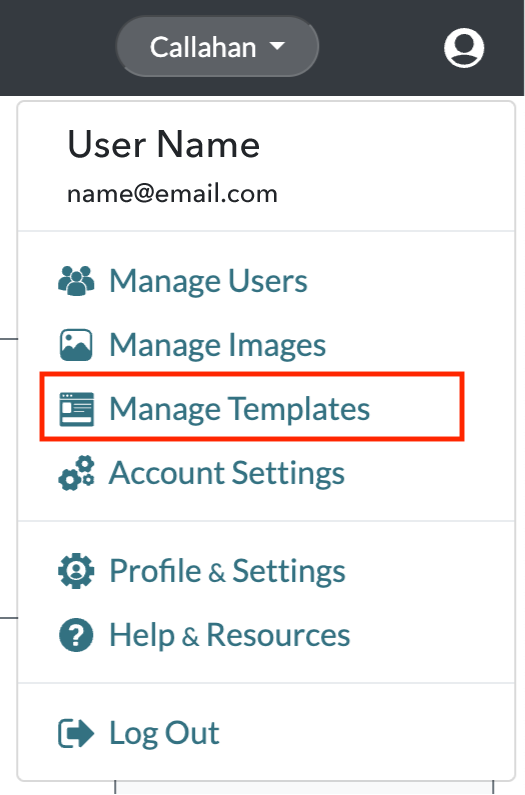
Click on the User Options menu in the top right of the Radiate screen and select Manage Templates from the dropdown menu.
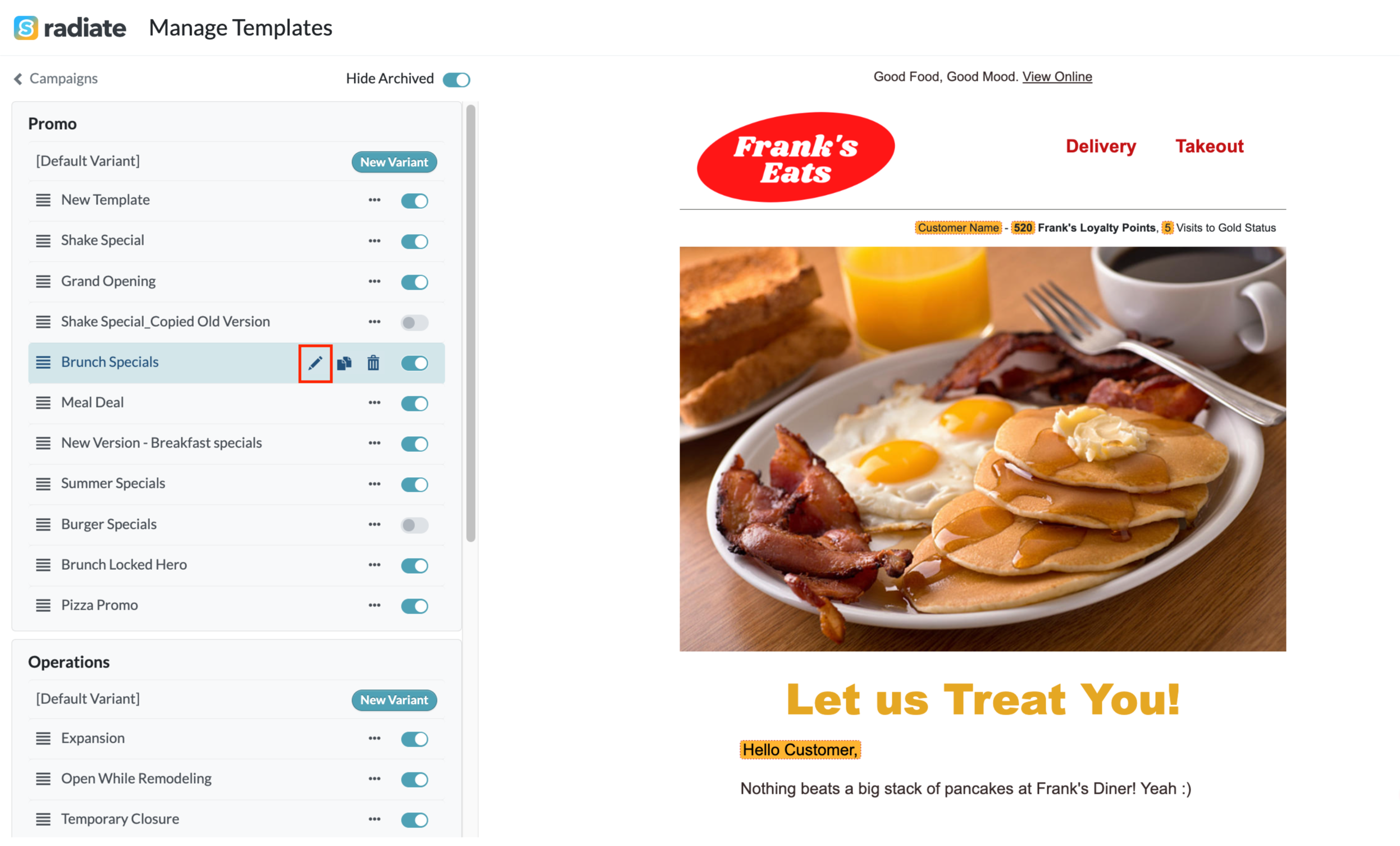
To edit a template variant, double-click on a variant or click the pencil Edit icon.

Subject Line and Preheader Options
You can provide multiple predefined subject lines and preheader options for users to choose from.
Depending on your customer engagement platform, preheaders may or may not be available.
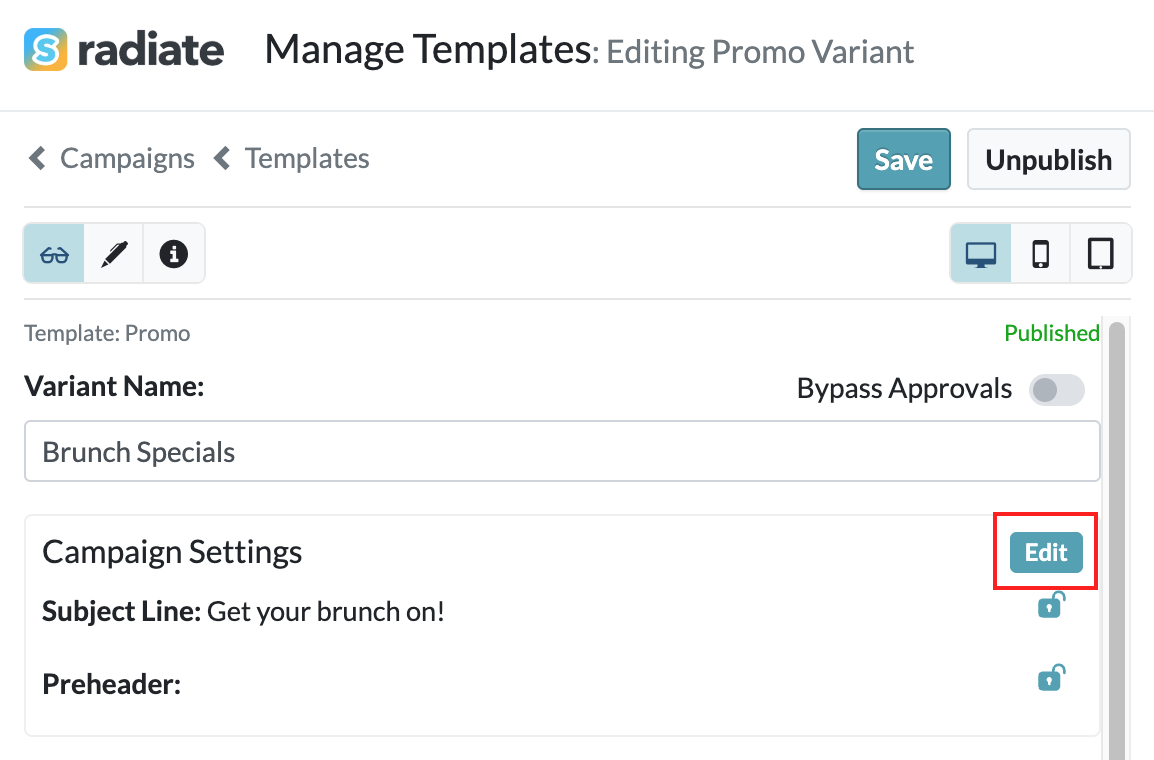
- Under Campaign Settings, Click Edit.
-
Edit Campaign Settings
-
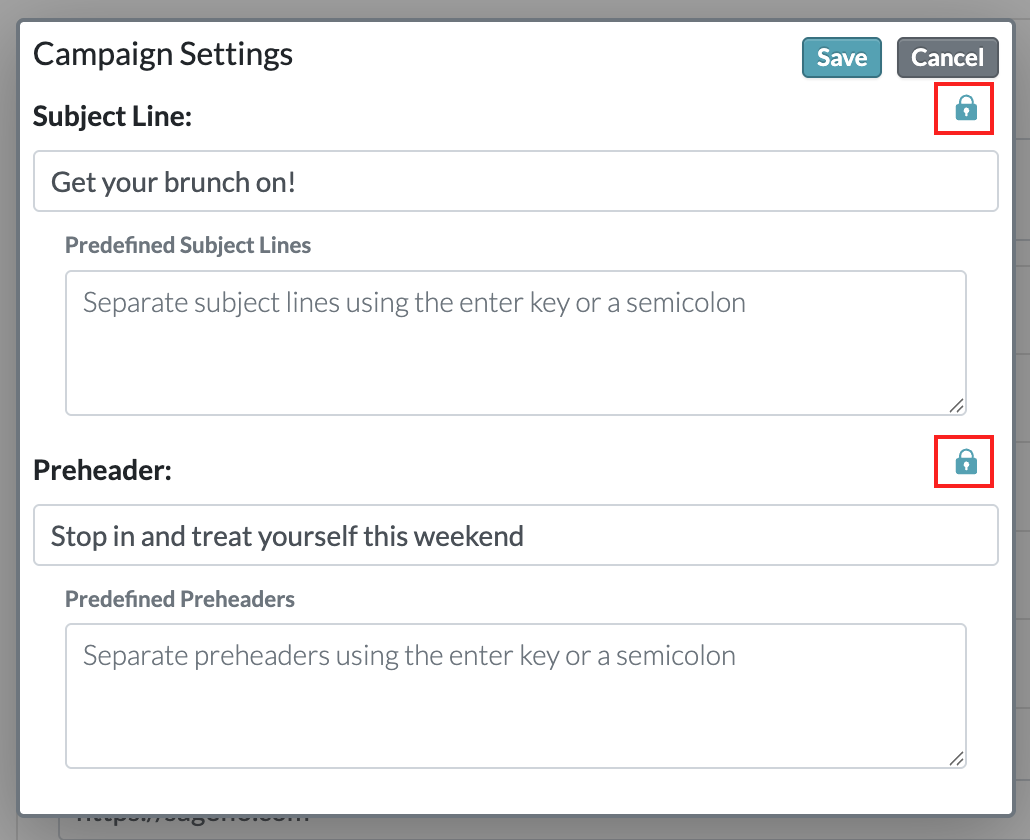
- If you want to provide a single locked option, enter the subject line and/or preheader and click the lock icon.
-
Locked Single Subject Line Option
-
- To offer multiple options, add predefined subject lines and/or preheaders. Separate each option using the Enter key or a semicolon.
-
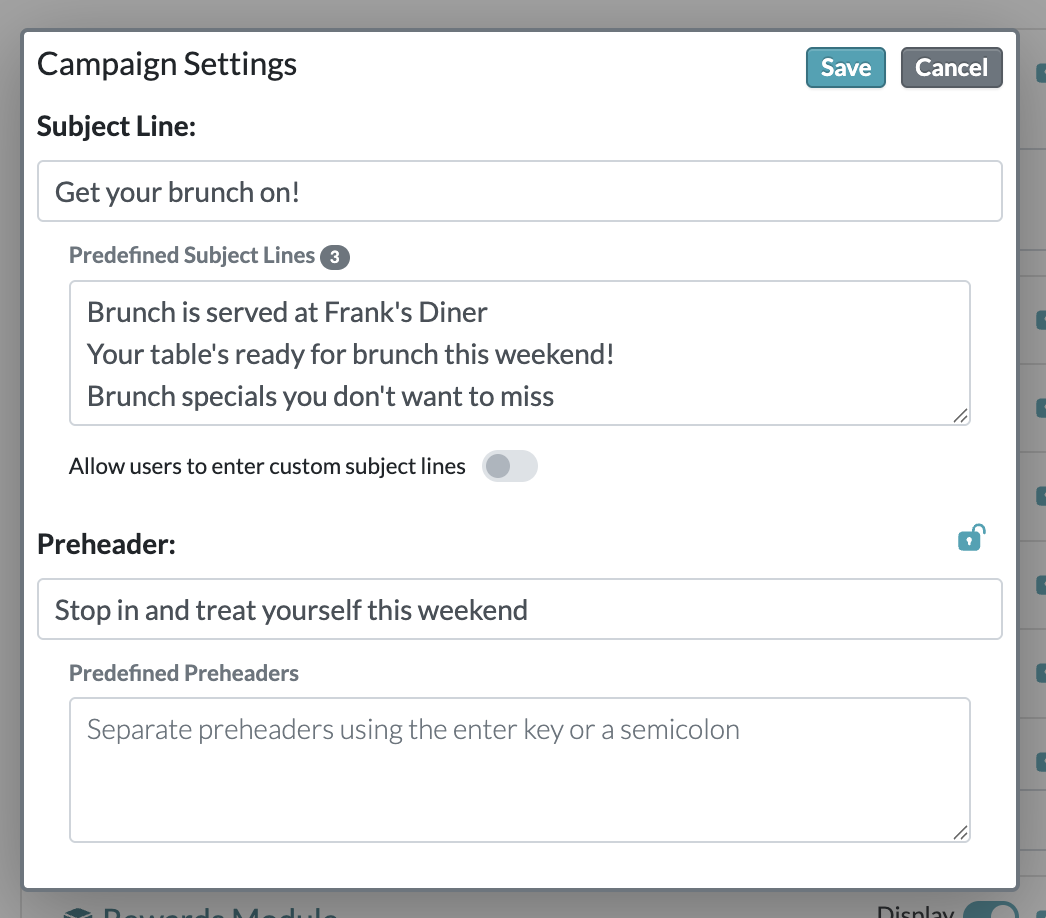
Multiple Subject Line Options
-
- Optionally, enable a Custom option to allow users to enter their own text.
-
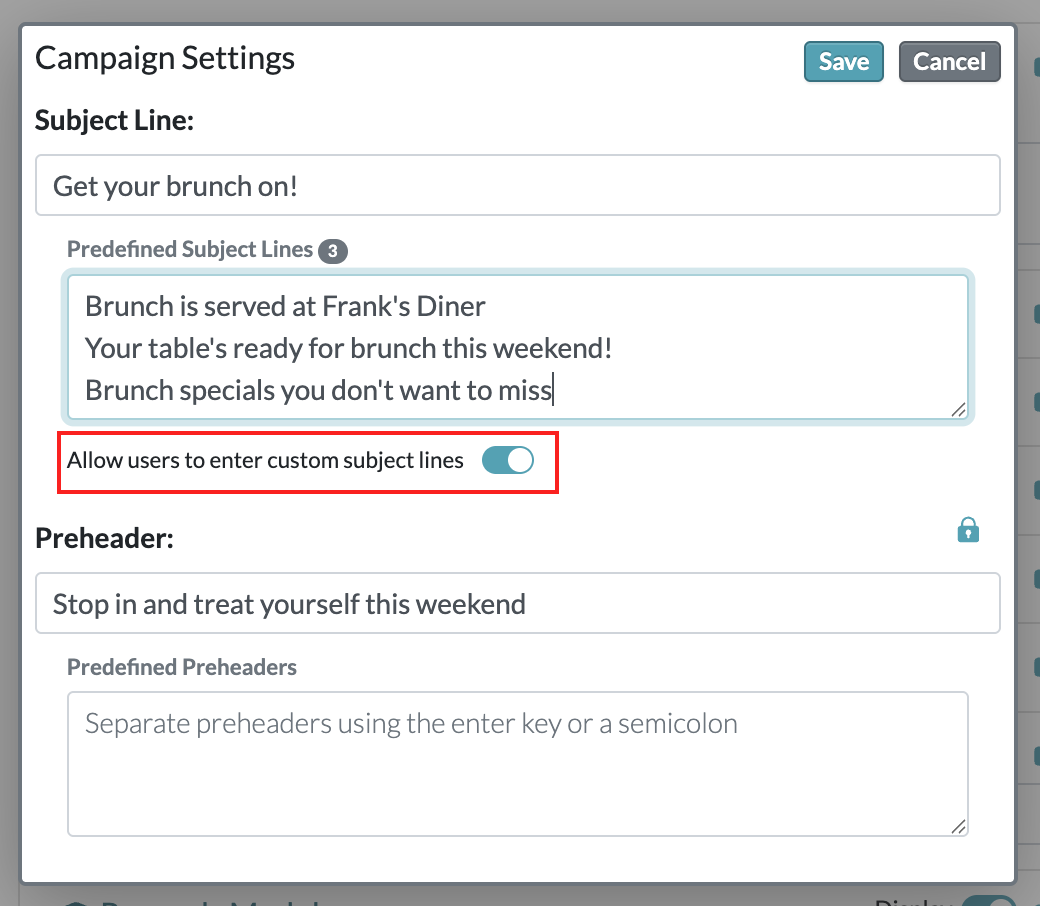
Enable Custom Option
-
- Click Save to apply your changes.
-
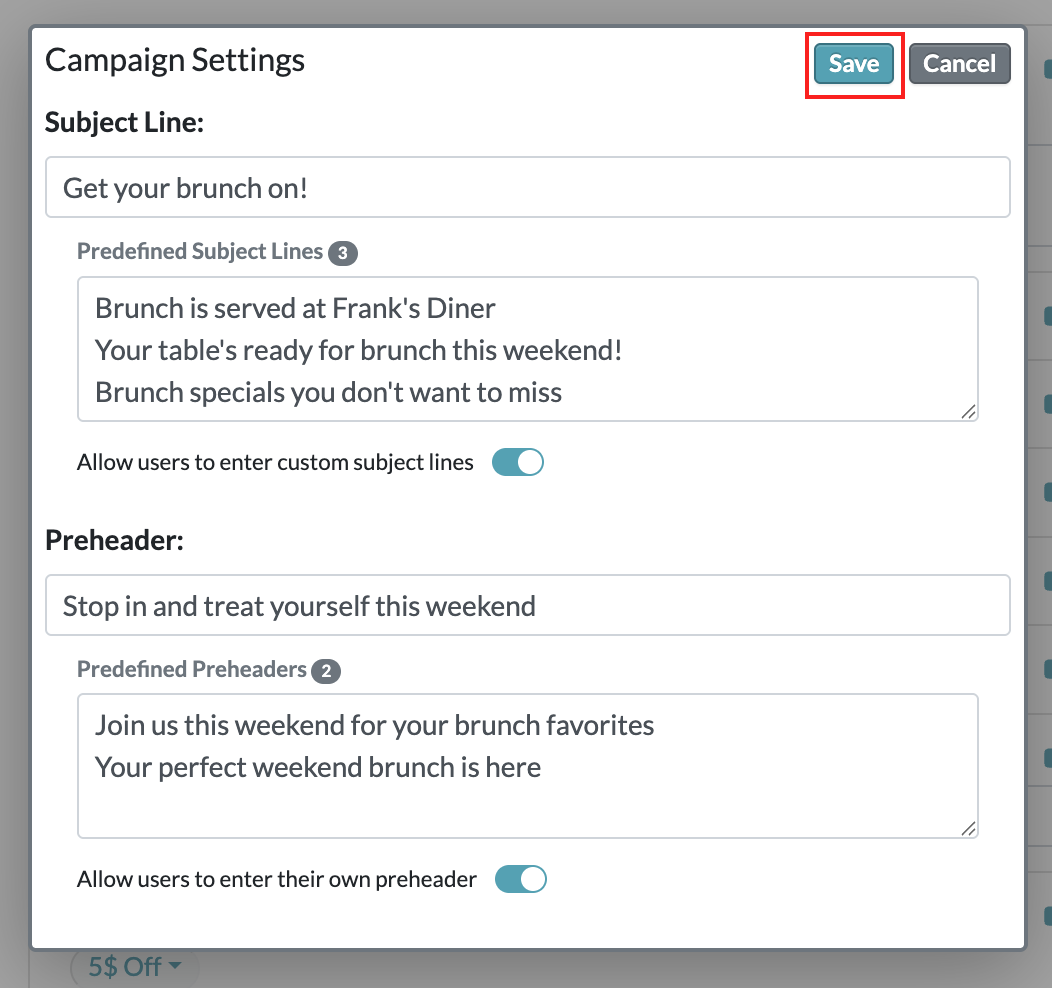
Save Options
-
These options will appear as dropdown selections on the Campaign Details page when users create or edit a campaign.

This makes it easier for local teams to choose branded, high-performing messaging quickly.
Limit to Specific Image Tags
You can override the default tags associated with an image slot in any template variant. This allows you to refine the image selection by adding tags to narrow results or removing tags that aren't relevant for that specific variant.
- Under an image content block, toggle on Limit to Specific Tags.
-
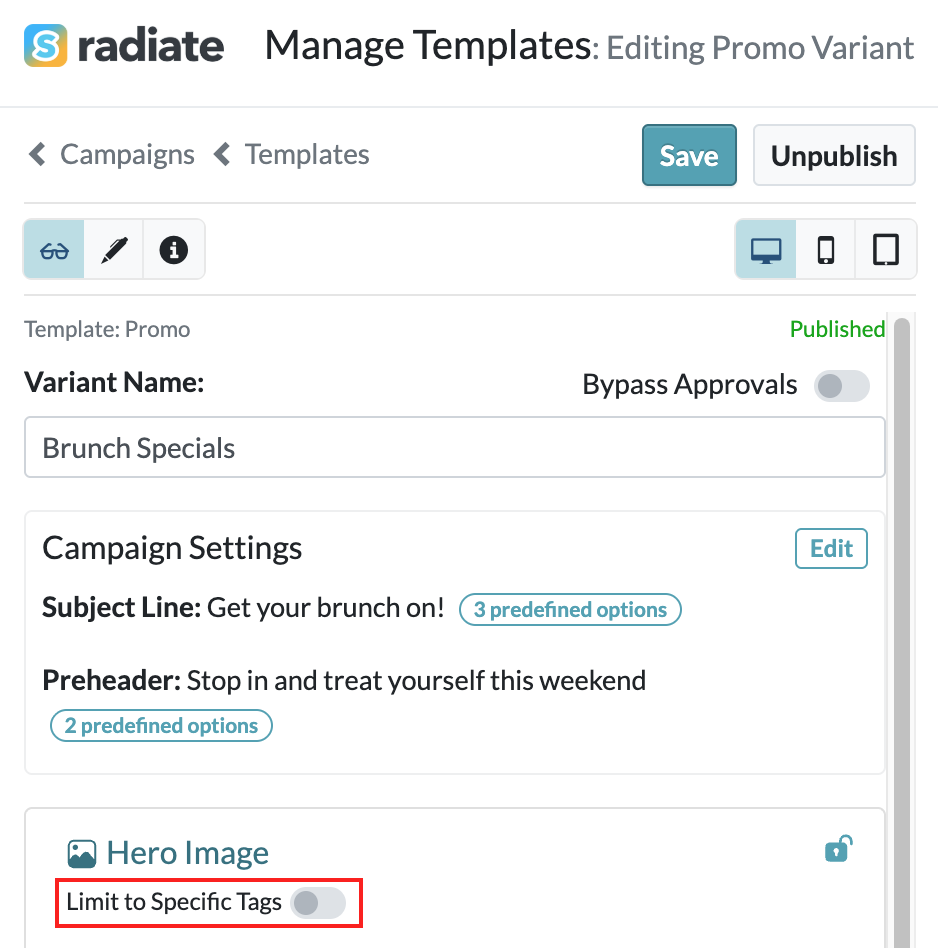
Limit to Specific Image Tags
-
- Add tags to narrow available images. Remove tags that aren't relevant for the template variant.
-
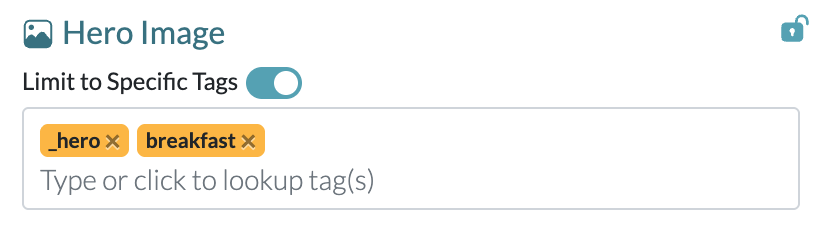
Image Tags
-
Insert Placeholders
Placeholders allow you to require users to fill in specific content before they can move forward.
- In a content section, enter your copy. Click Insert Placeholder to add editable fields.
- Placeholders appear highlighted in green. Users must update all placeholder content before they can proceed from the Edit Campaign page.

This ensures required fields are completed before a campaign is scheduled.
Locked Content Sections with Placeholders
Use placeholders within locked content sections to combine control and flexibility.
- In a content section, enter your approved copy. Click Insert Placeholder where edits should be allowed.
- Toggle to lock the containing content section, preventing changes to all other text.
- Placeholders (shown in green) remain editable, while the rest of the section is locked.

Once edited, locked placeholders display with a green outline, making it easy for users and approvers to identify what content was customized.

Limit Content Block Versions
You can limit which versions of a content block are available within a specific template variant. This helps tailor the editing experience by showing users only the most relevant content options for that campaign type.
- Click on a content block that contains multiple versions.
-
- Under Content Block Versions, control-click to select the versions you want users to be able to choose from in this template variant. Click Save.
-
- A success message will appear in the top-right corner of the screen.
-
- When users edit a campaign created from this template variant, they will only see the selected content block versions.
-


Bypass Approvals
Toggle Bypass Approvals to allow campaigns created from this template variant to skip the approval process.
A good use case for this is template variants where most content is locked down and pre-approved, allowing users to confidently schedule and send without additional review.
