
Creating and Editing a SMS Campaign
Editing Campaigns Step 1- SMS Campaign
This is Step 1 of the Editing Campaigns series.
- For email campaigns, go to Creating and Editing an Email Campaign.
- For the next step, go to Edit SMS Campaign Content.
Starting a New Campaign

From the Campaigns tab in Radiate, click on the blue Create New Campaign button. View all templates at a glance or filter by type. Select a template to start a new campaign.
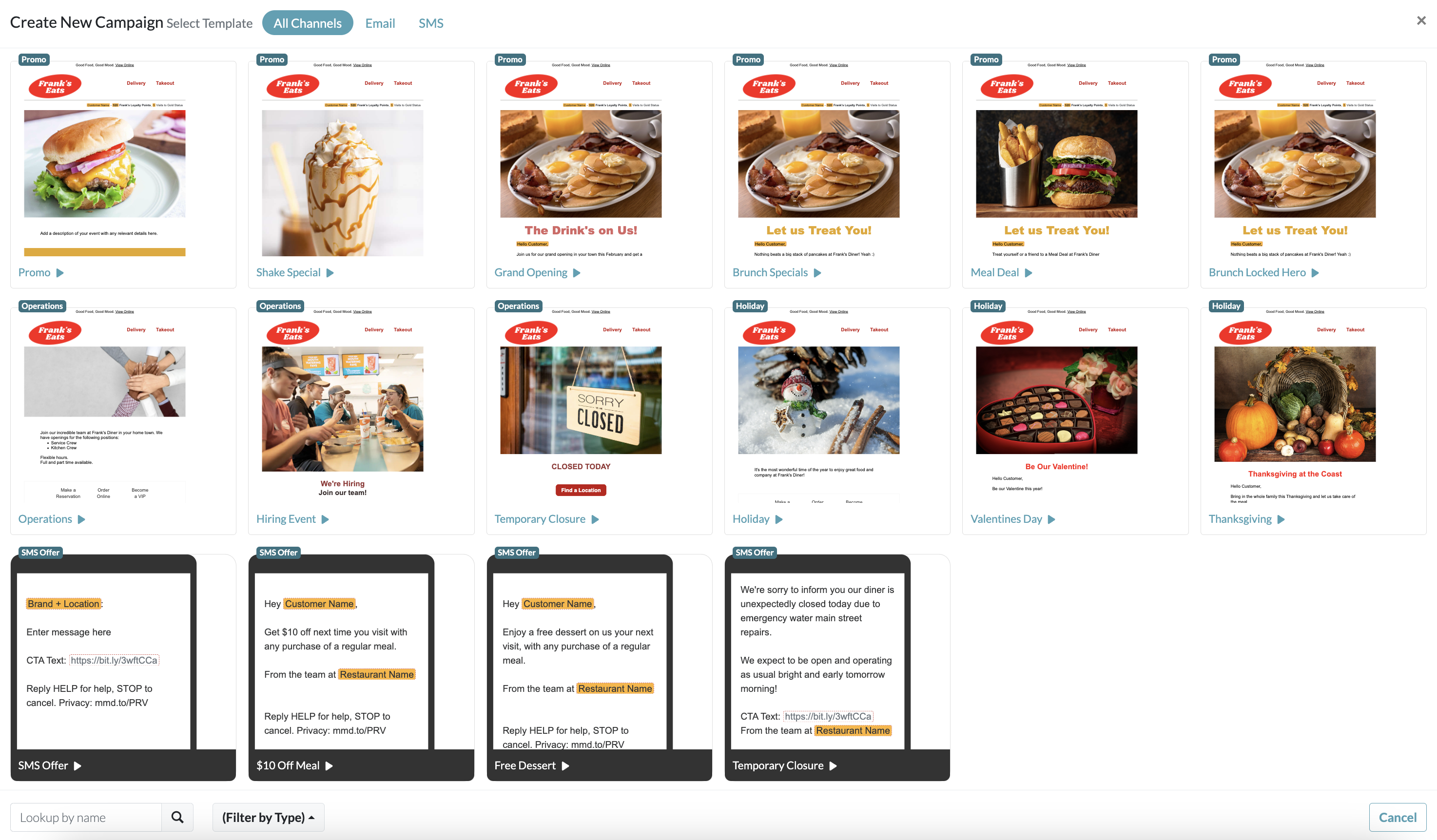
Select SMS to view all SMS campaign templates.

You can also click the down arrow next to the Create New Campaign button to quickly access pre-loaded templates.
Editing an Existing Campaign
If you are editing an existing campaign, go to the Campaigns tab. Double-click on the campaign you want to edit or click the pencil icon at the far right of the row.

Campaign Details
The first step you will see is the Campaign Details screen. Here you will specify:
- Campaign Name: Select a name that will clearly identify the campaign you are launching. We recommend making campaign names unique for each launch date so they are easily identifiable. Click on the blue information icon for tips.
- Campaign Type: For accounts that send campaigns on multiple channels, choose between different campaign types including SMS and Email.
- Template: Select from the dropdown. Once selected, you will see the template on the right side of the screen.
- Template Variant: If different variants have been created for your template, you can select one of the options from the dropdown.

For the next step, go to Edit SMS Campaign Content.